
Your first agent
This page walks through making an agent and putting it to work. It assumes you have finished setting up, including adding your licence key — see Your licence key, and the Terms of Service for what a licence covers.
Creating one
Choose + SPAWN at the top of the agent matrix, on the left of the window.
You are asked for four things:
- Name — whatever you want to call it.
- Job Title — what it does, in a few words.
- Expertise — a short comma-separated list of what it should be good at.
- System Prompt (optional) — standing instructions it should always follow.
There is also an Enable web search tick box, which decides whether this agent may look things up online.
Treat it as writing a very short job description. "Research Assistant" who knows "research, summarising" gives an agent something to aim at. "Helper" does not.
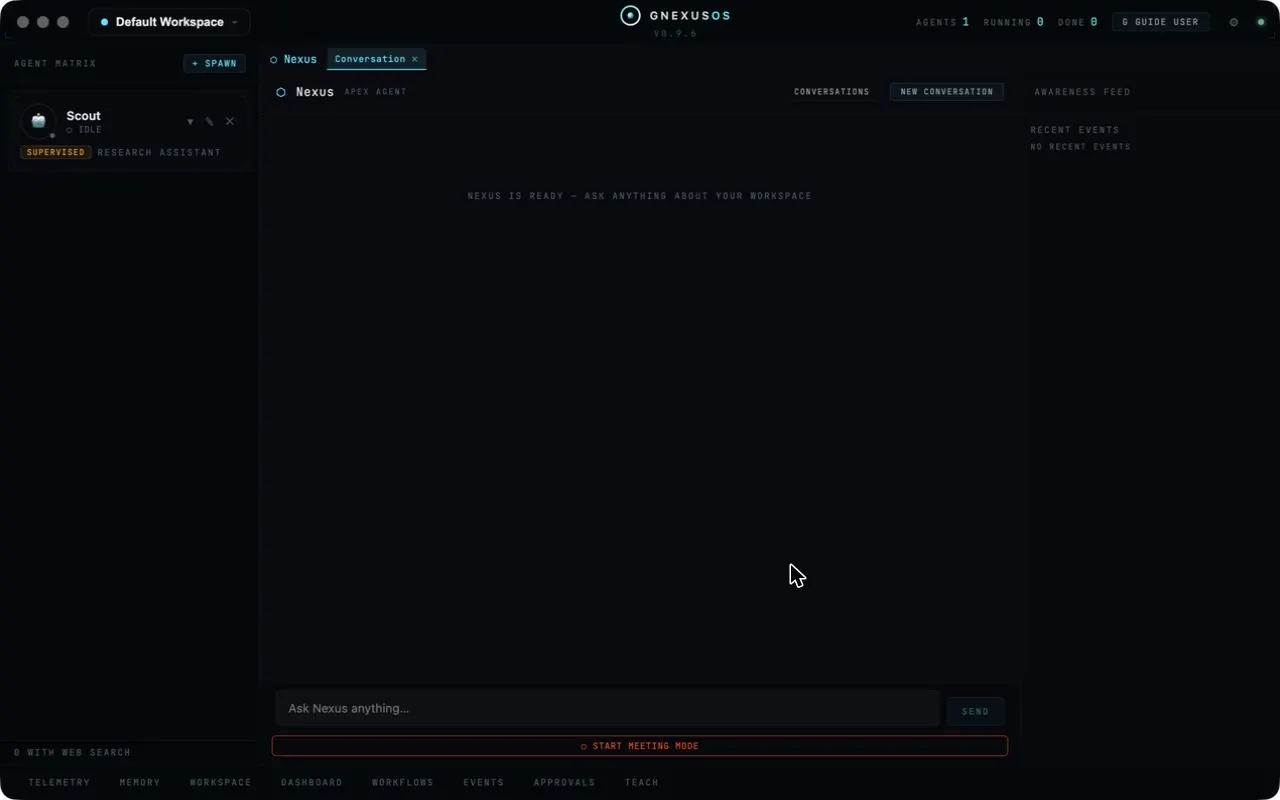
Your agent appears in the matrix straight away, marked IDLE because it has nothing to do yet, and SUPERVISED because that is where every new agent starts.
The trust panel
Click the small arrow on an agent's card to open its details.
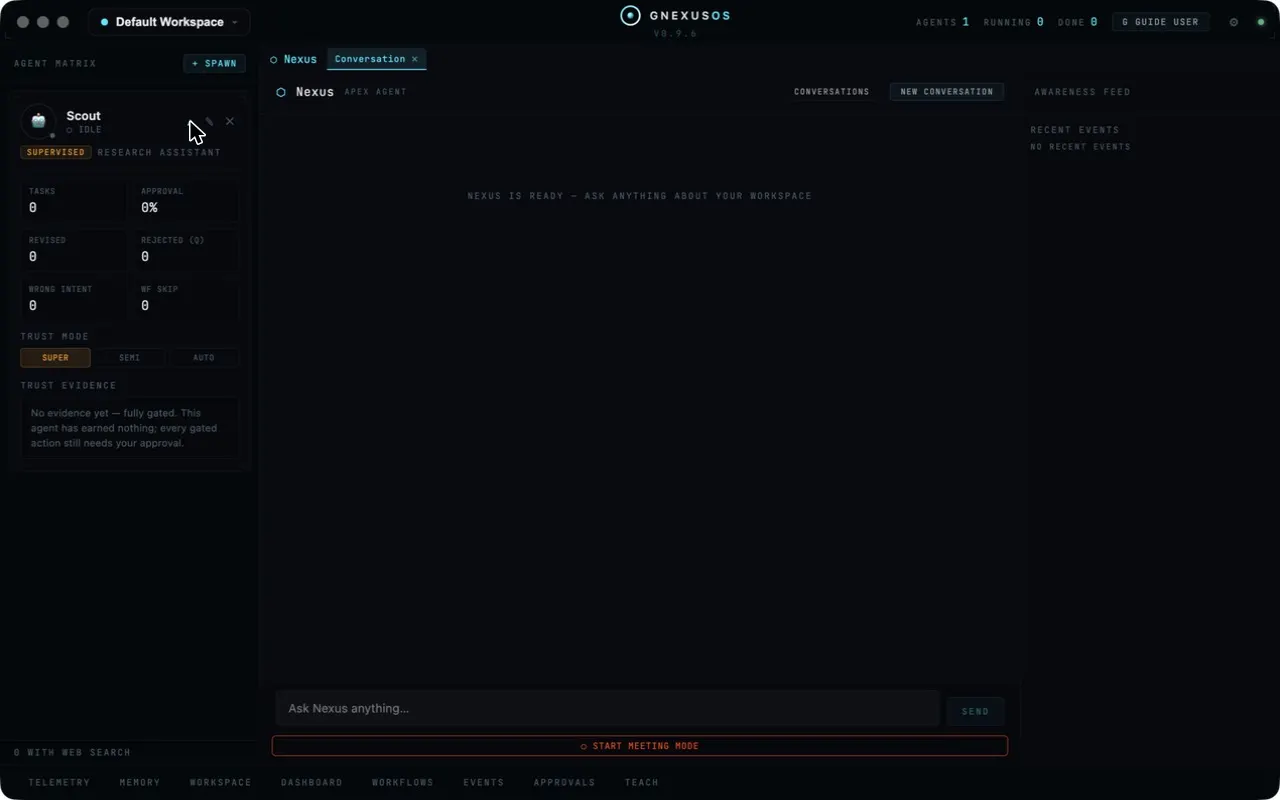
The counters across the top are the agent's track record: how many tasks it has done, how often you approved its work, how many times you revised or rejected something, and how often it misunderstood what you wanted.
Trust mode is the important control:
| Button | What it means |
|---|---|
| SUPER | Supervised. Every gated action waits for you. |
| SEMI | Semi-auto. Routine work runs; consequential actions wait. |
| AUTO | Autonomous. It gets on with things and reports back. |
Trust evidence underneath explains the agent's current standing. A new agent says:
No evidence yet — fully gated. This agent has earned nothing; every gated action still needs your approval.
That is the idea in one sentence. Freedom is something an agent earns by doing good work that you approved, not a switch you flip on day one. The counters are the evidence.
See Working with agents safely for how to decide when to promote one.
Giving an agent work
Type what you want into the box at the bottom of the window and choose SEND.
Be specific about the result you want. "Summarise the attached notes into five bullet points for a client email" will go better than "look at these notes".
The task appears in the task list as it runs, and its state updates as it goes. When it finishes, you can open it to see what it produced.
Approvals
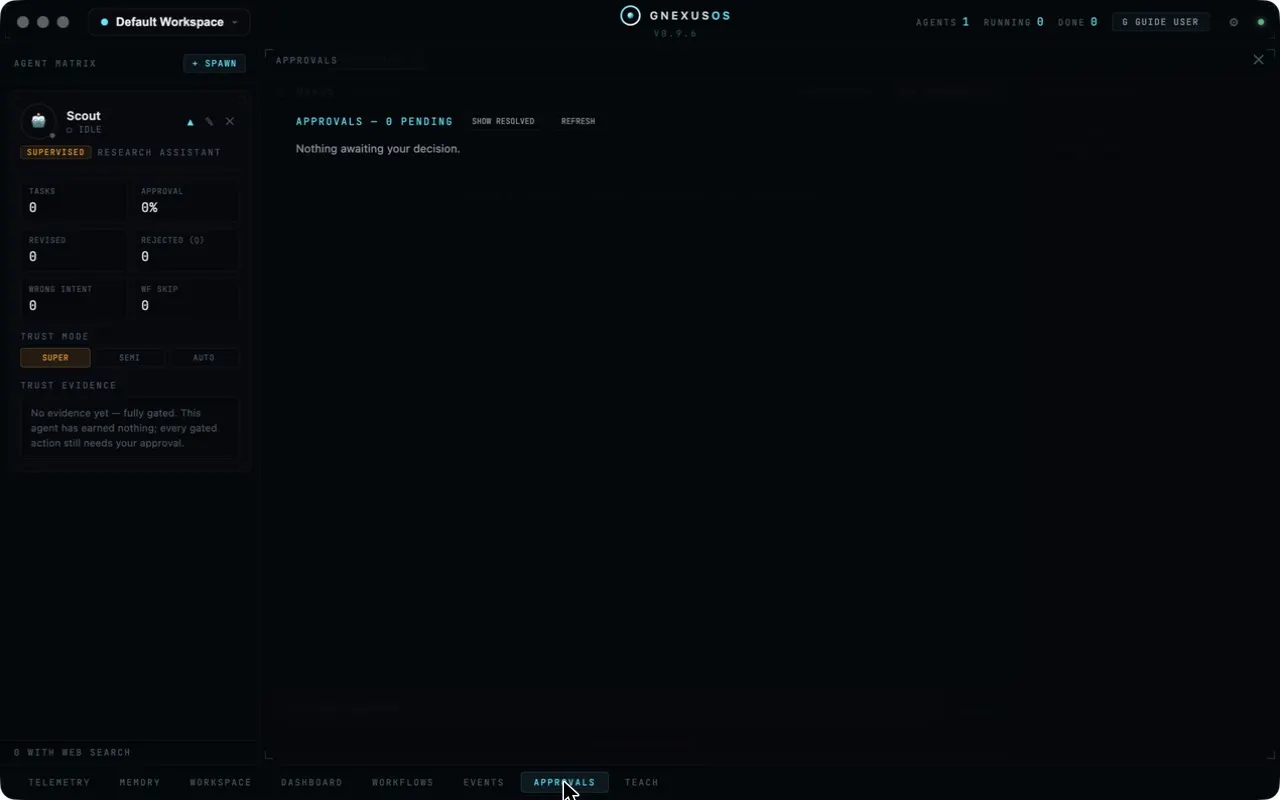
When an agent wants to do something that needs your permission, it appears here and the APPROVALS button shows a count.
When nothing is waiting, it says so plainly: Nothing awaiting your decision.
This is where you do your real supervising. Read what is being asked before you approve — a request describes the action the agent intends to take. SHOW RESOLVED lets you look back over decisions you have already made.
Workflows
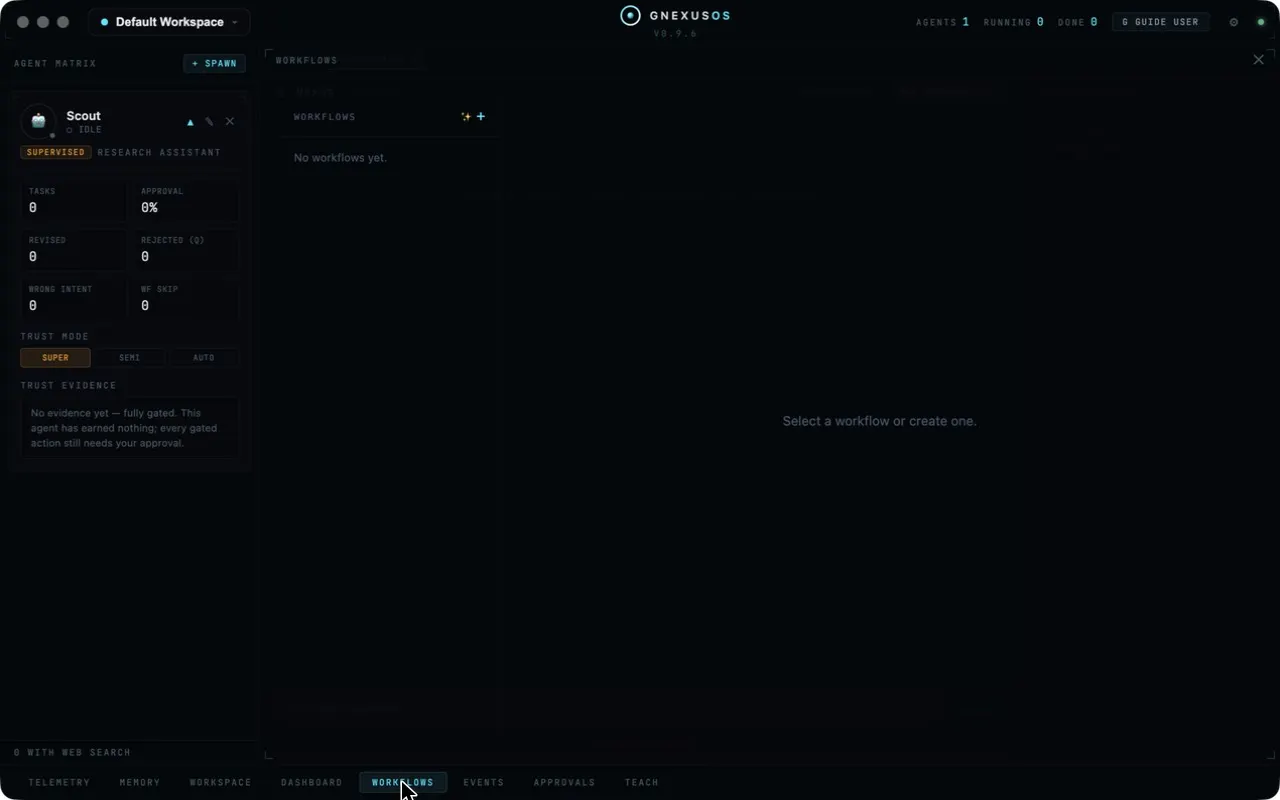
A workflow is a sequence of steps you expect to repeat — the same job done the same way each time, rather than a one-off request.
You start with none. Use the + to build one.
Memory
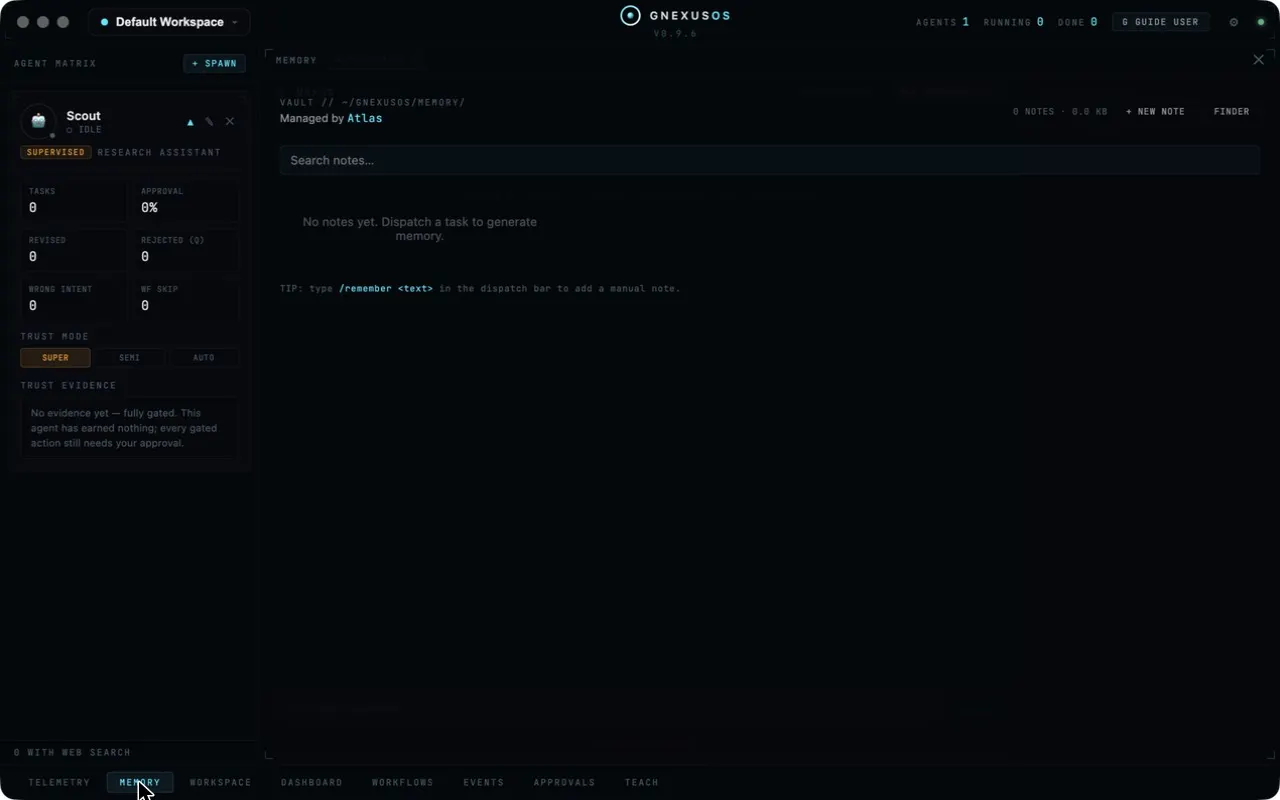
Memory is the organised record of what your agents have done. The panel shows the folder it lives in and which agent looks after it — the memory manager you named during setup.
Notes appear as work gets done. With no tasks run, there is nothing here yet, and the panel says so: No notes yet. Dispatch a task to generate memory.
You can add notes yourself. Type /remember followed by your text in the
dispatch bar and it goes straight into the vault. Useful for context you want
agents to have that did not come out of a task — a client's preferences, a
decision you made and why.
Everything is searchable from the box at the top.
Your workspace
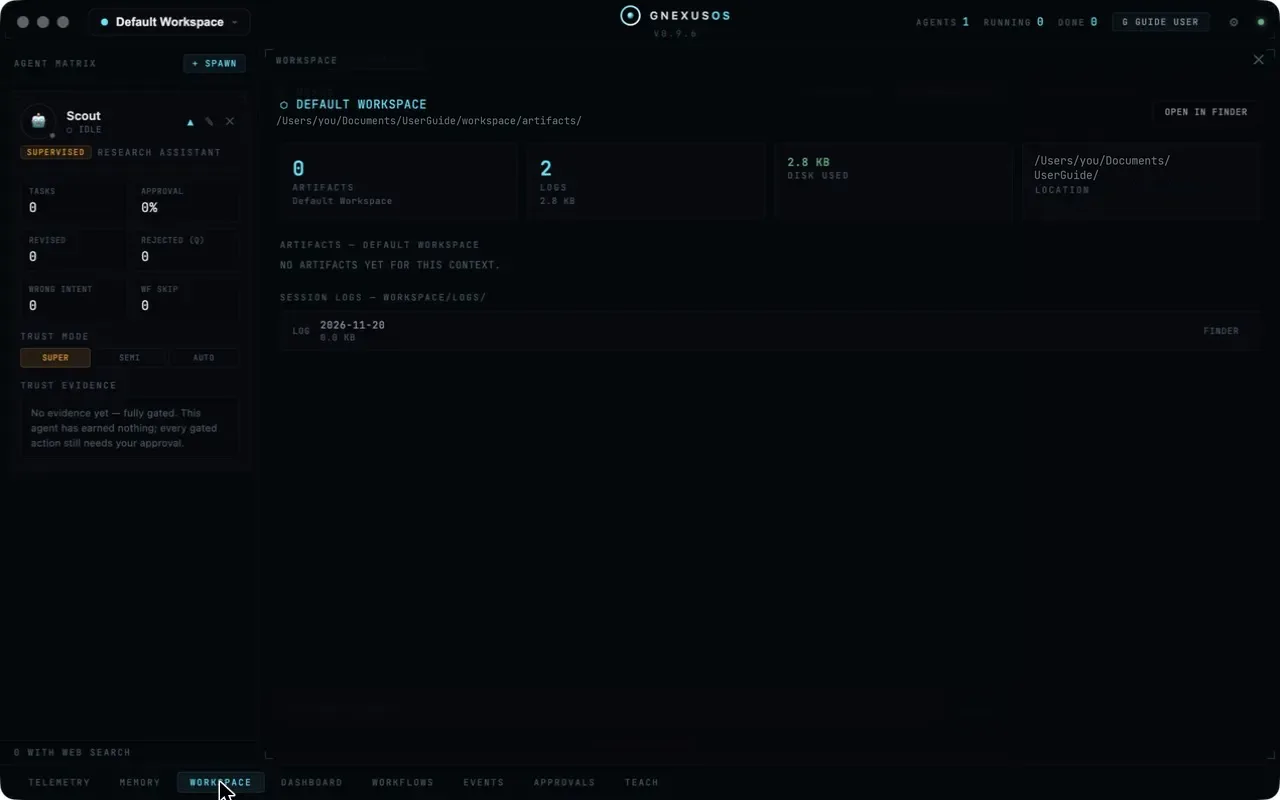
This panel is the plain-facts view of your data: how many artifacts exist, how many session logs, how much disk they use, and exactly where the folder is.
OPEN IN FINDER takes you straight there. Nothing is hidden and nothing is in a proprietary format — it is an ordinary folder you can back up, copy to another machine, or inspect yourself.
Artifacts are the things your agents produce. Session logs are the record of what happened.
The rest of the window
Along the bottom are the other areas:
- TELEMETRY — detail on tasks as they run.
- DASHBOARD — the overview of activity.
- EVENTS — the running log of what has happened.
- TEACH — where you correct an agent's behaviour.
The awareness feed down the right-hand side shows recent events without leaving the main screen. It is worth glancing at: if something unexpected ran, this is where you notice.
A sensible first session
- Create one agent for a real job you actually have.
- Leave it supervised.
- Give it a genuine task and read what it produces.
- Check the memory panel afterwards to see what it recorded.
- Only add a second agent once you trust the first.