
Letting an agent use your computer
Computer use lets an agent drive applications on your machine — clicking, typing, moving between windows — to carry out something you asked for.
It is the most powerful thing in GNexusOS and the one to understand properly before switching on. It is off by default.
Reading the switch before you flip it
Open System Config (the gear at the top right) and choose Governance. Scroll to COMPUTER USE. The card reads:
[Your apex agent] can control applications on this Mac to carry out your instructions. While a task runs, screenshots of the relevant display are sent to your configured AI provider for analysis. Everything is audit-logged locally. Kill switch stops all activity instantly.
(The card names your apex agent, whatever you called it during setup. The square brackets are ours.)
Four separate facts, each worth a moment:
It controls real applications. Not a sandbox, not a copy. The same apps you use.
Screenshots leave your machine. To work out what to click, the agent has to see the screen, and seeing means sending a picture of it to your AI provider. Only the relevant display, only while a task is running — but it leaves. If something confidential is on that screen, it is in that picture.
Everything is logged locally. You can go back and see what was done.
It stops instantly. The kill switch is not advisory.
Nothing here is hidden in a privacy policy. It is printed on the switch.
Before you switch it on
Your operating system has to allow it too, and the app checks. Choose Control in System Config.
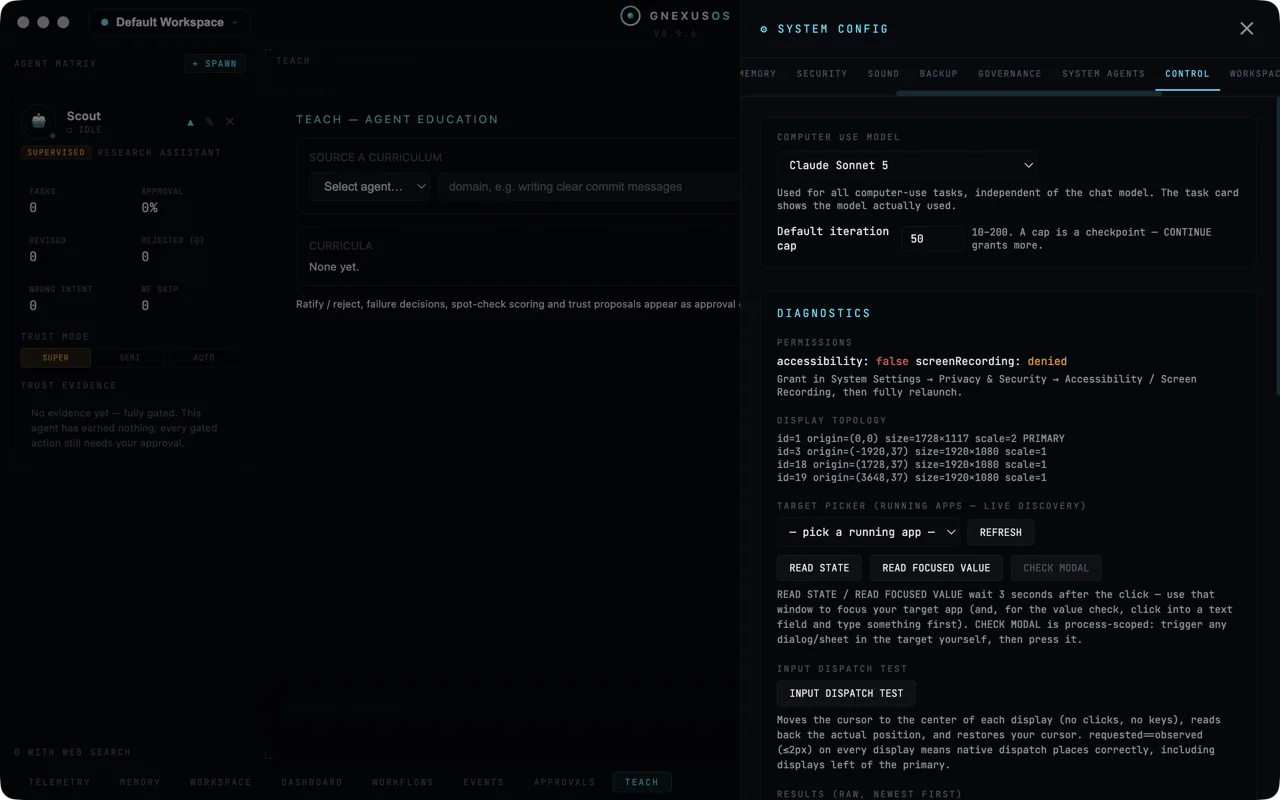
Under DIAGNOSTICS → PERMISSIONS you will see something like
accessibility: false screenRecording: denied, with the fix:
Grant in System Settings → Privacy & Security → Accessibility / Screen Recording, then fully relaunch.
Two things people get wrong here. Both permissions are needed — accessibility to act, screen recording to see. And the relaunch has to be a real quit and reopen; closing the window is not enough.
Settings that matter
The computer-use model
Used for all computer-use tasks, independent of the chat model. The task card shows the model actually used.
This is a separate choice from the model your agents chat with, because driving a screen is a different job from writing prose and the best model for one is not always the best for the other. The task card tells you which was actually used, so there is no guessing.
The iteration cap
The default is 50, adjustable between 10 and 200, and the description is the important bit:
A cap is a checkpoint — CONTINUE grants more.
An "iteration" is one look-and-act cycle. The cap is not a hard limit on what can be achieved; it is a point at which the agent has to come back and ask whether to keep going. Hitting it is not failure.
Lower it rather than raise it while you are learning what these tasks look like. A cap of 20 on a job you have not watched before gives you a look at the work before it has gone far.
While a task runs
A task card appears with the controls you need:
| Control | What it does |
|---|---|
| APPROVE & START | Begin, once you have read what it intends |
| STOP | Halt it |
| STEER | Correct it mid-run without stopping |
| RESUME AS-IS | Carry on unchanged |
STEER is the one to reach for most. If the agent is in the right place but doing the wrong thing, correcting it beats stopping and re-describing the whole job.
Stopping it fast
Press Escape. While a computer-use task is running, Escape halts it immediately, from anywhere. You do not have to find the window or the button.
Learn that before your first run, not during it.
Approving from the popup
When the agent needs permission mid-run, a small popup appears with keyboard shortcuts so you do not have to reach for the mouse while it is moving your cursor:
| Shortcut | Action |
|---|---|
| ⌘⇧⏎ | Approve |
| ⌘⇧⎋ | Decline |
On Windows, Ctrl in place of ⌘.
Where it can never go
Some places are closed to computer use permanently. They cannot be added to the allowed list — the code that validates the list refuses them, whatever you type in.
- Banks and banking sites
- Payment processors and money transfer services
- Brokerages and crypto exchanges
- Password managers and password vaults
This is guarantee 2 and guarantee 9 of the constitution, and it is not a default you can change. See Governance and the constitution.
The reasoning is simple enough. An agent that can see your screen and move your mouse inside your bank is one misread screenshot away from a disaster you cannot undo, and an agent inside your password manager has every credential you own. Neither risk is worth any amount of convenience.
The diagnostics
The rest of the Control panel is for working out why something is not working:
DISPLAY TOPOLOGY lists your monitors and how they are arranged.
TARGET PICKER discovers the applications currently running, with REFRESH to update the list.
READ STATE and READ FOCUSED VALUE wait three seconds after you press them, so you can click into the window — and, for the value check, into a text field — you want to inspect.
CHECK MODAL is per-application: open a dialog in the target app yourself, then press it.
INPUT DISPATCH TEST moves the cursor to the centre of each display, without clicking or typing, reads back where it actually landed, and puts your cursor back. If requested and observed match on every display, the app is placing clicks correctly — including on displays to the left of your main one, which is the arrangement that most often breaks.
Results appear underneath, newest first.
A sensible first run
- Grant both system permissions and fully relaunch.
- Turn computer use on.
- Lower the iteration cap to 20.
- Close anything confidential, including your email and your password manager.
- Give it something small and reversible — "open TextEdit and write me a shopping list".
- Watch the whole thing. Press Escape if you want to.
- Read the log afterwards.
Only then try it on something that matters.
Related
- Governance and the constitution — the switch lives there, and so do the limits.
- Approvals — the other place permission is asked.
- Working with agents safely.