
Workspaces and backups
A workspace is one complete GNexusOS: its database, its agents, its memory vault, its artifacts and its logs, all inside one folder. You can have several and switch between them, and you can copy any of them somewhere safe.
Backups
Open System Config (the gear at the top right) and choose Backup.
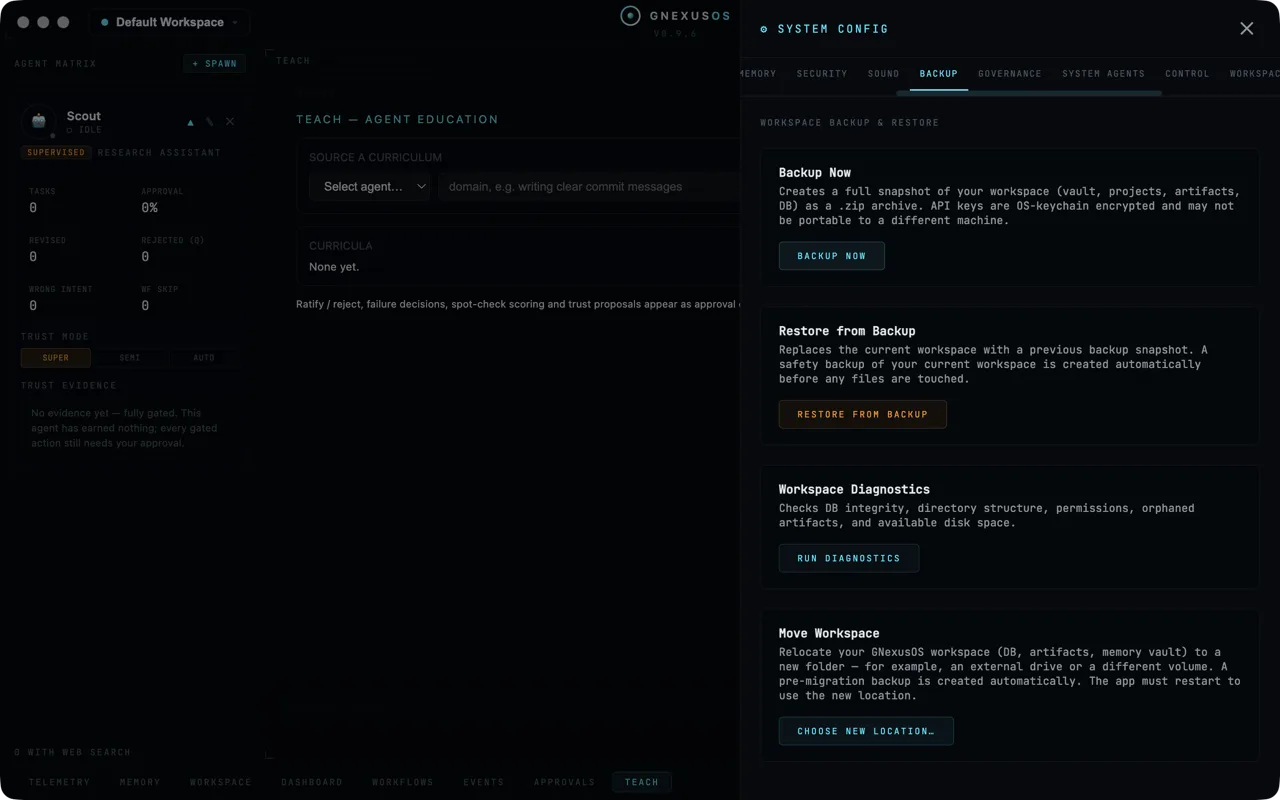
Backup Now
Creates a full snapshot of your workspace (vault, projects, artifacts, DB) as a .zip archive. API keys are OS-keychain encrypted and may not be portable to a different machine.
A single zip file containing everything. Put it wherever you keep backups.
Read the second sentence carefully. Your API keys are in the zip, but only as encrypted files — the secret that decrypts them is held by your operating system and tied to this machine and to the app's own signature. Restore a backup on a different computer and you will very likely have to enter your provider keys again.
That is a security feature, not a gap. A backup file that carried working API keys would be a file that hands over your provider account to anyone who copies it.
Restore from Backup
Replaces the current workspace with a previous backup snapshot. A safety backup of your current workspace is created automatically before any files are touched.
Note the word replaces. A restore is not a merge: the snapshot becomes your workspace, and anything done since is not in it.
The safety backup is the thing that makes this survivable. Before a single file is touched, your current state is snapshotted. If you restore the wrong archive, the way back exists.
Workspace Diagnostics
Checks DB integrity, directory structure, permissions, orphaned artifacts, and available disk space.
Run this if the app is behaving oddly in ways that feel like storage rather than logic — missing artifacts, things not saving, unexplained slowness. It is read-only and safe to run whenever.
Move Workspace
Relocate your GNexusOS workspace (DB, artifacts, memory vault) to a new folder — for example, an external drive or a different volume. A pre-migration backup is created automatically. The app must restart to use the new location.
Use CHOOSE NEW LOCATION… rather than dragging the folder in Finder. The app records where the workspace is, and moving it behind the app's back leaves that pointer aimed at nothing.
One caution about external drives: a workspace on a drive that is sometimes unplugged is a workspace that is sometimes missing. If you do it, make sure the drive is connected before you open the app.
More than one workspace
Choose Workspace in System Config.
At the top is the active workspace and its path, then ACTIVE WORKSPACE STATS, marked READ ONLY, with artifact and log counts and sizes, and a REFRESH button. Underneath is a MEETINGS section, which says No meetings recorded yet until there are some.
Below that is every workspace the app knows about: its name, its folder, and when it was last opened. Each has three buttons.
| Button | What it does |
|---|---|
| SWITCH (RELAUNCHES) | Make this the active workspace |
| REMOVE FROM REGISTRY | Forget it; the files stay where they are |
| DESTROY FILES… | Delete the workspace and everything in it |
Those last two are very different
REMOVE FROM REGISTRY only stops the app listing it. Every file stays on disk, and you can add it back. Use this to tidy up a list cluttered with workspaces you are not using.
DESTROY FILES… deletes the folder. The agents, the memory, the artifacts, the logs. The ellipsis is there because it asks first, and it is coloured as a warning for good reason.
If you are not completely certain, remove it from the registry instead. You can always destroy it later; you cannot undestroy it.
Switching relaunches the app
The button says so. A workspace is loaded when the app starts, so changing it restarts the app. Anything running stops.
When a second workspace is worth it
Worth it: work that must not mix at all — a client who requires their material kept separate, or a sandbox for trying things out where you do not mind breaking something.
Not worth it: organising your own work. For that, use projects and clients inside one workspace, which is far less friction — see Your workspace and files.
A second workspace means a second set of agents, a second memory vault and a second provider setup. That is the cost, and it is only worth paying for real separation.
A backup routine that works
- Backup Now before anything big: before restoring, before moving, before a major update.
- Keep the zip somewhere other than the machine it came from.
- Try a restore once, deliberately, while nothing is wrong. A backup you have never restored is a guess.
- Remember the keys. Note which providers you use, so that restoring elsewhere is a five-minute job rather than an afternoon.
Related
- Your workspace and files — what is in the folder.
- Memory — the vault that travels with it.
- Install GNexusOS — setting up on a second machine.