
Voice
GNexusOS can listen and speak. It is off until you turn it on, and the settings are unusually clear about what the microphone is doing in each mode — which is the part that matters.
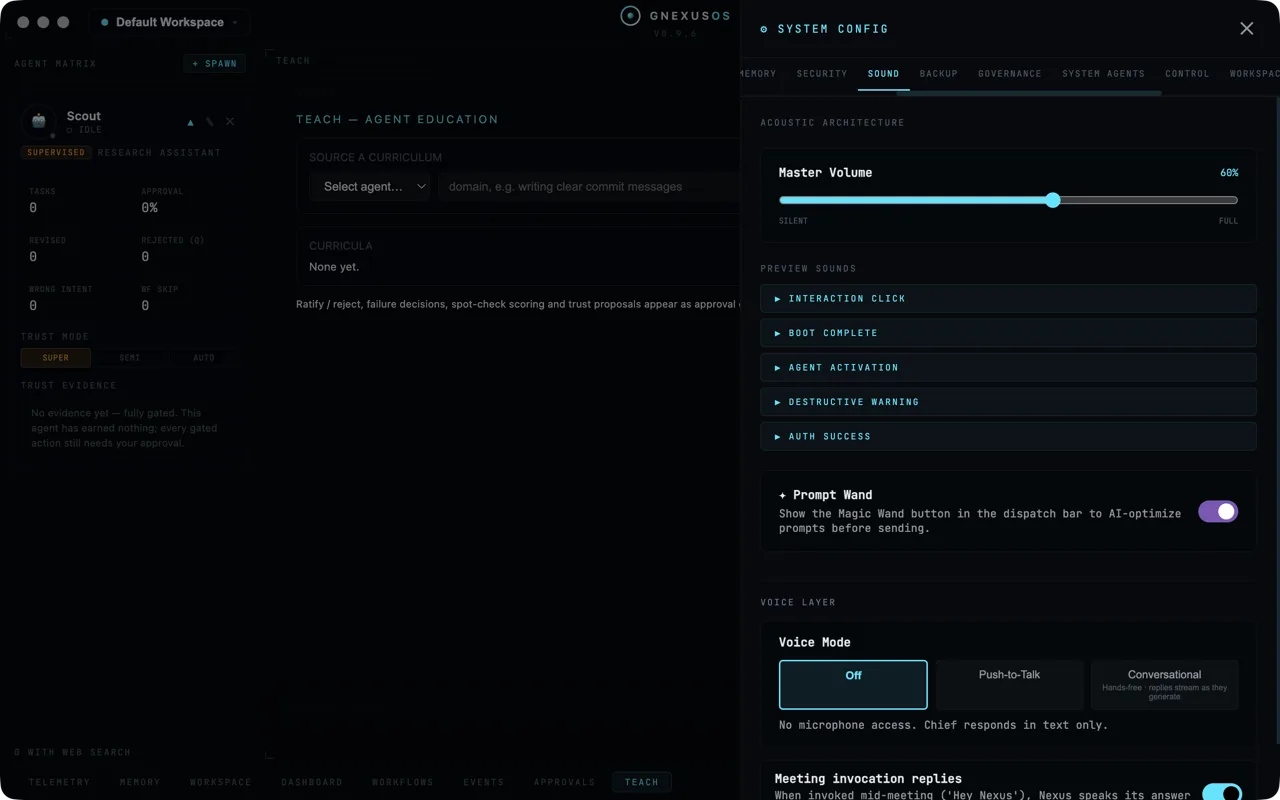
Open System Config (the gear at the top right) and choose Sound.
Before anything works: a voice provider
Voice needs a service that can turn speech into text and text into speech. Choose Connections in System Config and look for Voice provider, described as:
Used for [your apex agent's] TTS and speech-to-text
(The panel names your apex agent, whatever you called it during setup. The square brackets are ours, here and below.)
Until you connect one it says:
No voice provider connected — voice features are disabled.
Choose + Connect and follow the steps. This is a separate account from your AI provider, and you pay that service directly, in the same way.
See Connections.
The three voice modes
Under VOICE LAYER there are three buttons.
Off
The default. The note underneath is unambiguous:
No microphone access. [Your apex agent] responds in text only.
Nothing is listening. Leave it here unless you actively want to talk.
Push-to-Talk
You hold a key, speak, and let go.
Hold PTT to speak. No wake phrase, no background listening.
The global shortcut is ⌘⇧Space on a Mac and Ctrl+Shift+Space on Windows, and it works even when GNexusOS is not the window you are looking at. You can also press and hold the floating orb with the mouse.
One quirk worth knowing: the keyboard shortcut is a toggle — press to start, press again to stop — because a global keyboard shortcut cannot tell the app when you let go of the key. Holding the orb with the mouse is a true press-and-hold.
This is the mode to pick if you want to talk to the app but do not want a microphone open in the background. Nothing is heard except while you are holding.
Conversational
Hands-free. The button itself says:
Hands-free · replies stream as they generate
In full:
Click the orb to open a hands-free conversation. Replies stream — [it] starts speaking as the reply is generated.
"Streaming" means it begins answering before it has finished thinking, the way a person does, instead of a long silence followed by a paragraph.
The wake phrase
In conversational mode you can arm a wake phrase from the chat bar. The settings describe its limits precisely, and all four are deliberate:
- per session only — it is not a standing setting
- detected on-device — the listening for the phrase does not leave your computer
- off again at every launch — it never comes back on by itself
- the current phrase is fixed until a custom model ships
An always-on wake word that survives restarts is a microphone you forget about. This one makes you re-arm it, every time.
Speak all replies
Once voice is on, a switch appears:
Speak all replies — Read keyboard replies aloud. PTT replies always speak.
So replies to things you said are always spoken. This switch decides whether replies to things you typed are spoken too. Turn it on if you want to listen while doing something else; leave it off if you only want the app to talk back when you talked to it.
During a meeting
Lower down is Meeting invocation replies:
When invoked mid-meeting ('Hey Nexus'), [it] speaks its answer aloud. Off = silent text advice in the chat panel only.
That switch is the difference between the app answering out loud in a meeting and quietly putting the answer on your screen for you to read. In most meetings you want it off.
Choosing the voice
Open System Config → System Agents. Under VOICE you get the current voice, a CHANGE VOICE button and ▶ TEST VOICE.
Test it before a call rather than during one.
The other sounds
The rest of the Sound panel is about the app's own noises.
Master Volume sets the level for all of them, and you can preview each one: the interaction click, the boot chime, agent activation, the destructive warning and the authentication success sound.
The destructive warning is worth listening to on purpose. It plays before an action that cannot be undone, such as permanently purging a task. Knowing what it sounds like means you recognise it the one time you did not mean to trigger it.
Also on this panel
Prompt Wand is here rather than with the dispatch settings:
Show the Magic Wand button in the dispatch bar to AI-optimize prompts before sending.
See Dispatching work.
If voice is not working
Work down this list:
- Is a voice provider connected? Without one, voice features are disabled outright.
- Is the voice mode anything other than Off?
- Has your operating system given GNexusOS microphone permission? That is a system setting, not an app one.
- In conversational mode, did you click the orb to open the conversation?
- For spoken answers to typed messages, is Speak all replies on?
What the error messages mean covers the rest.