
Memory
Memory is what stops you explaining the same thing every week. It is a folder of ordinary notes that your agents write as they work and read before they start, and you can write in it too.
Choose MEMORY along the bottom of the window.
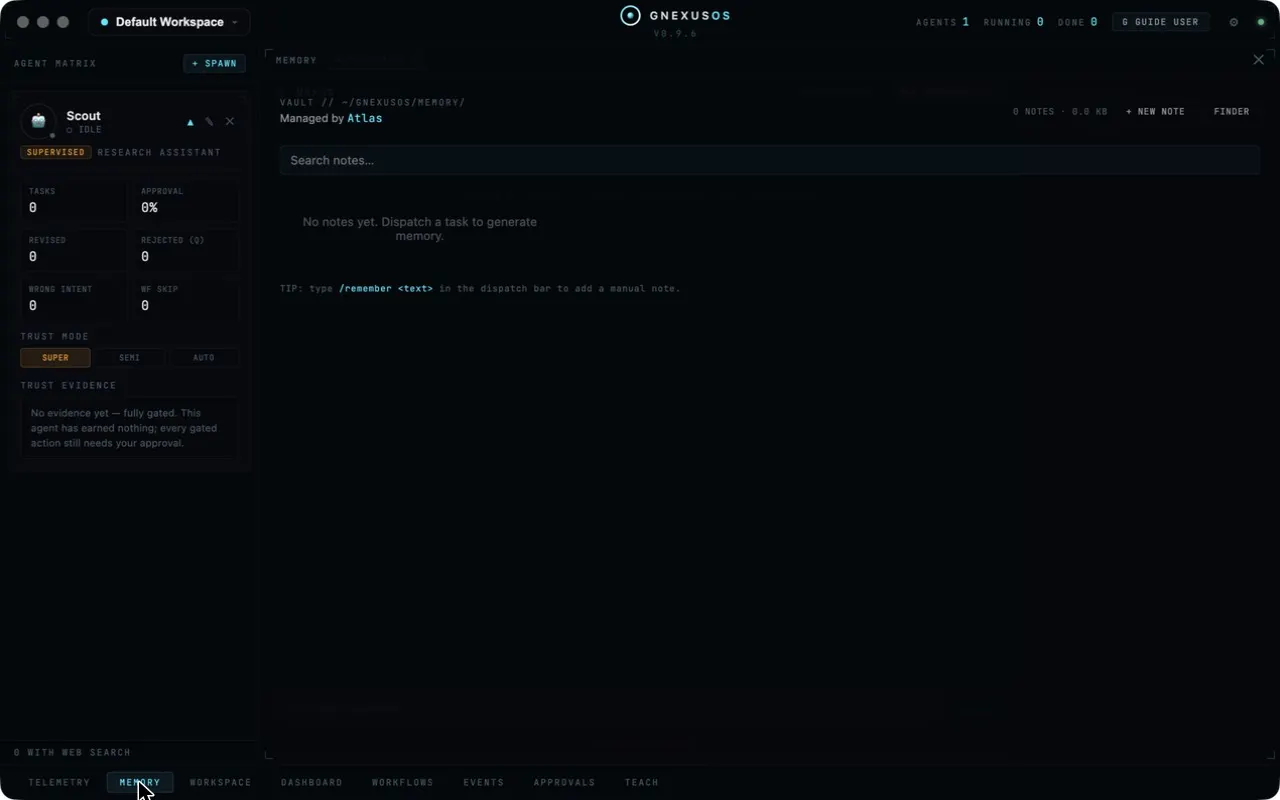
What the panel shows
Across the top:
- VAULT // followed by the folder the notes live in.
- Managed by and the name of the agent that looks after it — your memory manager, named when you set up.
- A count of notes and how much space they take.
- + NEW NOTE to write one by hand.
- FINDER to open the folder on your computer.
Underneath is a search box, and then the notes.
Before anything has run, the panel says so:
No notes yet. Dispatch a task to generate memory.
Three ways a note gets written
Agents write notes as they work. Finish a task and useful facts from it end up here without you doing anything.
You can type one into the dispatch bar. The panel tells you how:
TIP: Type
/remember <text>in the dispatch bar to add a manual note.
This is the one to get into the habit of. Anything you find yourself re-explaining belongs here — a client's preferences, a decision and the reason for it, the fact that one spreadsheet is the real one and the other is old.
+ NEW NOTE writes a longer one in the panel itself.
It is just a folder
The vault is plain Markdown files on your disk. FINDER opens it. You can read them in any text editor, copy them to another machine, put them in version control, or delete one you do not want.
Nothing about your memory is locked inside GNexusOS. That is deliberate: a record you cannot get at is not really yours.
Keeping it in Obsidian
If you already keep notes in Obsidian, the app can sync the vault with it. Open System Config (the gear at the top right) and choose Memory.
CHOOSE VAULT points the app at your Obsidian vault. It warns you if the folder does not look like one:
No .obsidian folder here — this may not be a vault yet.
Once connected you get the time of the last sync and a SYNC NOW button. Syncing also happens on its own at sensible moments, including whenever you open System Config.
Three things worth knowing:
If the vault goes missing, syncing pauses rather than deleting anything. The panel says:
Not found — sync is paused. Nothing has been deleted.
That is what you want if an external drive is unplugged or a cloud folder has not finished downloading.
Files that cannot be written are counted, not hidden. If a file is locked or permission is denied, the panel tells you how many failed on the last pass rather than quietly reporting success.
Conflicts are kept, not resolved for you. If the same note changed in both places, both versions are kept — one as the synced file and one beside it — and the conflict appears under NEEDS YOUR ATTENTION until you have looked at it.
Your personal profile
There is a separate switch for syncing User.md, the file that holds what the
system has worked out about you. Think before turning it on: anything in your
Obsidian vault can be read by the agents that have access to it.
You can read that file without syncing anything. System Config → Profile shows it, marked READ ONLY:
What [your apex agent] understands about you (User.md), maintained by [it] as it learns. Read-only here.
(The panel uses your apex agent's own name, whatever you called it during setup. The square brackets are ours.)
Before anything has been learned it says:
No profile yet — [your apex agent] writes this file as it gets to know you.
Reading it occasionally is a good habit. It is the clearest view you get of what the system thinks it knows.
Anomaly flags
At the bottom of System Config → Memory is a list of anomaly flags, which says No open flags when all is well.
A flag is raised when something written into memory looks wrong — a note that does not match what actually happened, or an entry that reads as though it were trying to influence an agent later. Each flag shows the reason, the agent it concerns, the date and the text in question, with a RESOLVE button once you have dealt with it.
If a flag appears, read it. Memory is what agents trust, so anything odd in memory matters more than it looks.
Related
- Dispatching work — where
/remembergoes. - Your workspace and files — the rest of what lives on disk.
- Workspaces and backups — how to copy all of it somewhere safe.