
Updates and locking the app
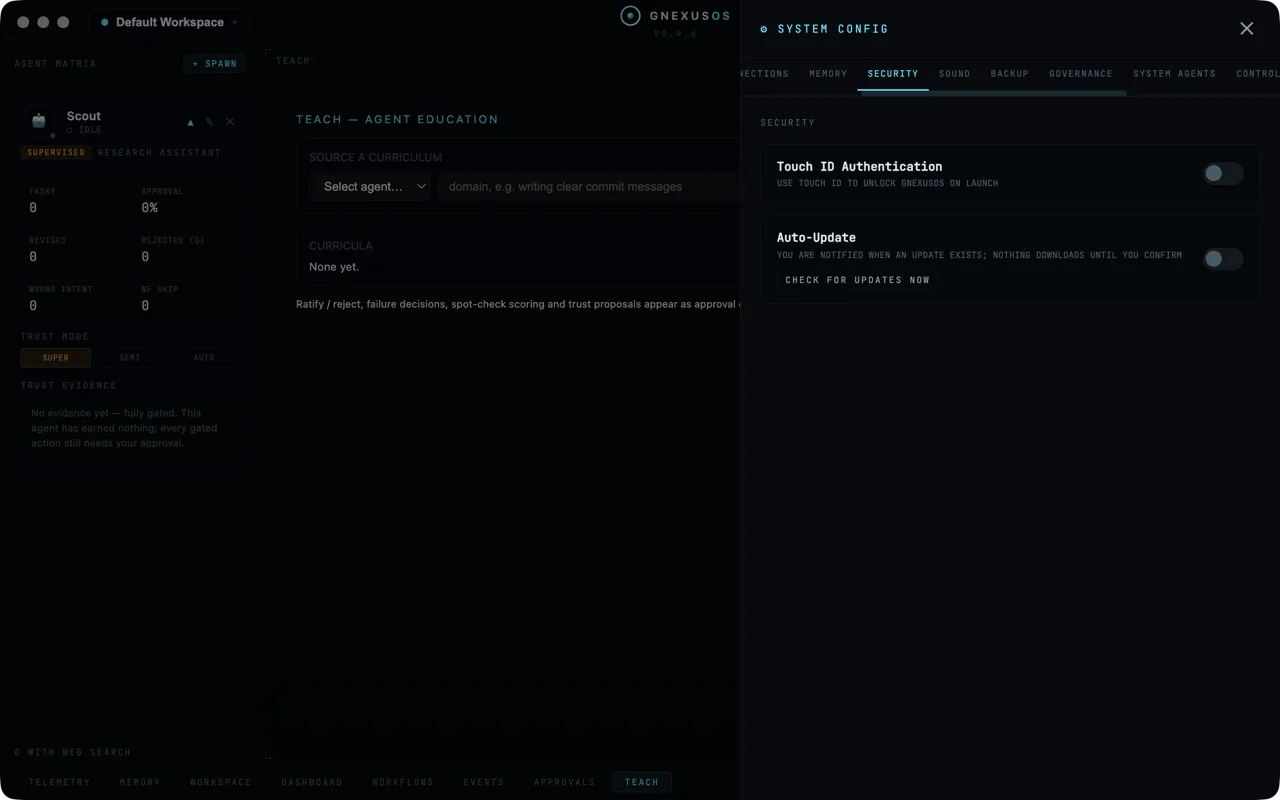
Open System Config (the gear at the top right) and choose Security. There are two switches, both off by default.
Touch ID
Touch ID Authentication — use Touch ID to unlock GNexusOS on launch
Turn this on and the app asks for your fingerprint when it opens.
Worth it if your workspace holds client material, or if your machine is ever left unlocked where other people are. It protects the app, not the files — the workspace folder is still a folder on disk, readable by anything that can read your disk. For that, use your operating system's own disk encryption.
Updates
Auto-Update — you are notified when an update exists; nothing downloads until you confirm
Read that carefully, because "auto-update" usually means the opposite. Here, off means you are told an update exists and nothing happens until you agree. There is no background download, no surprise restart.
CHECK FOR UPDATES NOW asks immediately rather than waiting.
What you see when one arrives
A small pill appears in the window reading ↑
Update available — GNexusOS (version) — (size).
with a Download button. Nothing has been fetched yet at that point; the app only knows the update exists.
After it downloads
GNexusOS (version) has downloaded and is ready to install. Restart now, or it will install automatically the next time you quit.
Two things here are deliberate. It never restarts underneath you — an update waits for a moment you chose. And choosing Later does not start a nag: the update is already staged and will install when you next quit anyway, so the app has no reason to keep asking.
Your in-flight work is never at risk either way.
The version you are on
The version is printed under the GNexusOS wordmark at the top of the window. Quote it when you report a problem — it is the first thing anyone will ask for.
Eligibility for new versions
Whether you can install a new build is a separate question from whether the app runs. A licence that has stopped being eligible for updates does not stop the software you already have; it only means new builds are not yours to install.
The Terms of Service set out what a licence covers, and Your licence key explains the key itself.
Should I turn auto-update on?
On if you would rather have the fix than choose the moment. Updates often carry security work, and a version you never installed protects nobody.
Off if you work to deadlines and want to pick your moment, or if you want to read what changed first.
Either way the restart is yours. The only real risk is leaving it off and then ignoring the pill for six months.
Related
- Install GNexusOS — getting the first copy.
- Workspaces and backups — take a snapshot before a big update.
- What the error messages mean.