
Your workspace and files
Everything GNexusOS knows lives in one folder on your computer. No copy exists anywhere else unless you make one. This page shows you where that folder is, what is in it, and how to keep different jobs from running into each other.
Choose WORKSPACE along the bottom of the window.
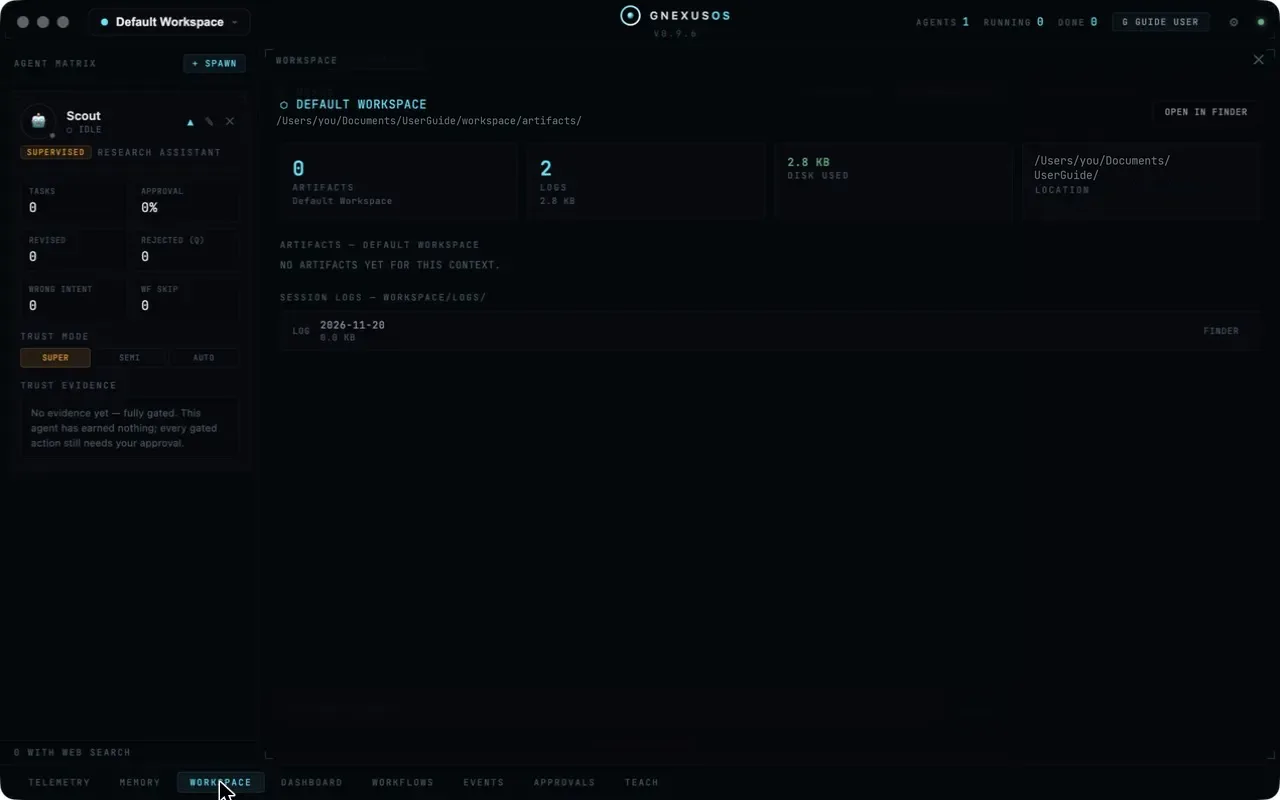
What the panel shows
Across the top is the name of the context you are in and the folder its artifacts go to, with OPEN IN FINDER on the right.
Four tiles give you the facts:
| Tile | What it tells you |
|---|---|
| ARTIFACTS | How many files your agents have produced |
| LOGS | How many session logs exist, and their size |
| DISK USED | How much space the whole lot takes |
| LOCATION | Exactly where the folder is |
Underneath, the artifacts for the current context are listed. With none yet it says:
NO ARTIFACTS YET FOR THIS CONTEXT.
Then SESSION LOGS — WORKSPACE/LOGS/, one row per log with its date and size, each with its own FINDER button.
Artifacts and logs are different things
An artifact is something an agent made for you — a document, an image, a spreadsheet, a transcript. It is the output you asked for.
A session log is the record of what happened — the back and forth, the decisions, the steps taken. You rarely need it, and when you do need it you need it badly.
Both are ordinary files in ordinary folders.
Opening the folder
OPEN IN FINDER takes you straight there. On Windows the same button opens File Explorer.
There is nothing clever inside: directories, Markdown files, images, whatever your agents produced. You can back it up with the same tool you use for everything else, copy it to another machine, open the files in any app, or delete something you do not want.
This matters more than it sounds. A record you can only read through the software that made it is not really yours. Here, if GNexusOS vanished tomorrow, your work would still be sitting in a folder you can open.
The one thing in the folder you cannot read
Your API keys are in there, under config/keys/, but encrypted. The
secret that opens them is held by your operating system and tied to this
machine, so the files are useless anywhere else.
That is why a workspace copied to a different machine will ask you to enter your keys again — see Workspaces and backups.
Projects and clients
The control at the very top left of the window — it reads Default Workspace until you change it — separates work that should not be mixed together.
Open it and you get three things:
⬡ Default Workspace is where you are unless you choose otherwise. Think of it as "general".
PERSONAL PROJECTS are your own strands of work. Type a name and choose Add.
CLIENTS are for work done for someone else. Add a client, then add projects underneath them.
Switching context changes what the workspace panel shows: artifacts belong to the project they were made in, which is why the artifact list is headed with the context name.
Renaming and removing
Each project has a small pencil to rename it and a cross to remove it. Removing is restorable — the item is archived rather than destroyed, and a ↩ Restore control brings it back. Deleting a client archives its projects with it.
When to bother
If you only ever do one kind of work, stay in the default workspace and ignore all of this.
Use projects the moment two jobs start contaminating each other: when an agent starts quoting one client's details while writing to another, or when you cannot find a file because thirty unrelated ones are in the way. That is the signal, and it usually arrives sooner than people expect.
Files an agent can see
In System Config → Agents, each agent has a Files button. That is the set of files that particular agent works with.
Giving an agent the right files is usually more effective than writing a longer instruction. An agent that can read the actual spreadsheet does not need you to describe it.
Related
- Memory — the notes, as opposed to the outputs.
- Workspaces and backups — copying, moving and restoring the whole folder.
- The dashboard and the logs — the other records the app keeps.